
Locking down your family's accounts against takeover attempts
Protect the email account that unlocks the rest of your family’s online life
Key takeaways
- Protect your main email account first because it can be used to reset many other passwords.
- Turn on 2-step verification for important accounts and prefer an authenticator app when the service offers one.
- Use a strong unique password for every important account, especially when 2SV is not available.
- Never share one-time codes or approve unexpected sign-in requests.
- Keep devices updated, locked, and traceable with Find My or Find My Device.
Why this matters to you
Your 2-minute quick win
Open your main email account and go to its security settings today. Look for a setting named 2-step verification, 2SV, two-factor authentication, or multi-factor authentication, then switch it on. You have done it right when the account shows that a second step is now required when you sign in from a new device or change your password.
For most families, email is the master key. The UK National Cyber Security Centre says criminals with access to your inbox can use it to reset passwords on your other accounts. That means one takeover can spread fast from email to social media, cloud storage, shopping sites, and family messages.
Attackers do not always break in with advanced tools. The sources describe common methods such as spear-phishing and social engineering. In plain terms, that means tricking someone into handing over a password, a code, or approval for a sign-in request.
Personal accounts are often easier targets than work systems. They may have fewer security checks, older passwords, and no shared support team watching for unusual sign-ins. That makes home accounts attractive stepping stones into the rest of your digital life.
Families also create extra paths for takeover. One parent may handle school emails, bills, and shared shopping. Another may store backups, photos, and travel bookings. If one account falls, the attacker may find enough information to guess answers, reset other passwords, or pretend to be a family member.
The good news is that a few changes make takeover much harder. Strong unique passwords, 2SV, safer messaging habits, and updated devices block many of the moves attackers rely on. None of these steps needs deep technical skill, but they do need to be done on purpose.
What you are protecting
Start with your main personal email account. This is the account that receives password reset links, billing alerts, sign-in warnings, and backup codes. If an attacker gets into that inbox, they may not need to crack any other password at all.
Next come high-value accounts. The NCSC names email, messaging apps such as WhatsApp, social media, and online banking as important targets for extra protection. For a family, cloud storage also matters because it often contains scans of documents, photos, and shared files.
Messaging apps deserve special attention. The source notes that attackers may try to add their own devices to messaging accounts by getting people to share verification codes or scan unexpected QR codes. If that happens, private chats and family coordination can be exposed.
Your devices matter too. A phone, tablet, or laptop often stores saved passwords, email access, and sign-in approval prompts. If someone gains access to the device itself, they may be able to impersonate you, read messages, or approve their own login attempts.
Do not overlook your family’s digital footprint. The NCSC warns that attackers can use personal information shared on social media to engineer targeted attacks. Birthdays, school names, pet names, travel plans, and family routines can all help a criminal craft a more believable message.
Finally, protect your recovery options. That includes backup codes, your authenticator app, the phone number tied to sign-in codes, and any spare email address used as a second step. These are the tools that help you recover access safely. If they are weak or exposed, your protection falls apart under stress.
What it costs you if you skip this
The first cost is speed. Once an attacker reaches your email, they can move from account to account by using password reset links. You may not notice until friends receive odd messages, purchases appear, or services warn that your password was changed.
The second cost is loss of control. A criminal inside a messaging app or social account can pretend to be you. They may ask relatives for money, send malicious links, or pressure someone into sharing a code. Because the message comes from a known account, family members may trust it.
The third cost is data exposure. Emails, cloud files, and chat histories can reveal addresses, travel plans, financial details, and copies of important documents. Even when no money is stolen, the theft and publication of sensitive information can cause reputational damage, as the NCSC notes.
There is also a recovery burden. You may need to change passwords across many accounts, remove unknown devices, warn contacts, and rebuild trust in messages that appear to come from you. If you reused the same password elsewhere, the cleanup grows much larger.
Skipping updates adds another cost. The source explains that out-of-date software, apps, and operating systems often contain security vulnerabilities, and vendors release updates to fix them. Delay those updates long enough, and you leave open doors on devices that hold your family’s accounts.
Old habits can make a bad day worse. If your family shares passwords casually, stores codes in easy-to-find places, or approves 2SV prompts without checking, a single mistake can spread quickly. Attackers depend on that chain reaction.
Step by step
Start with your main email account. Open its security settings and switch on 2-step verification, 2SV, two-factor authentication, or multi-factor authentication. Done correctly, the account confirms that a second step will be required for risky actions such as signing in from a new device or changing the password.
Choose an authenticator app if the account offers one. The NCSC names Google Authenticator and Microsoft Authenticator as examples and says they are more secure and convenient than SMS. Done correctly, the service shows the app as an active second step and your app starts generating login codes.
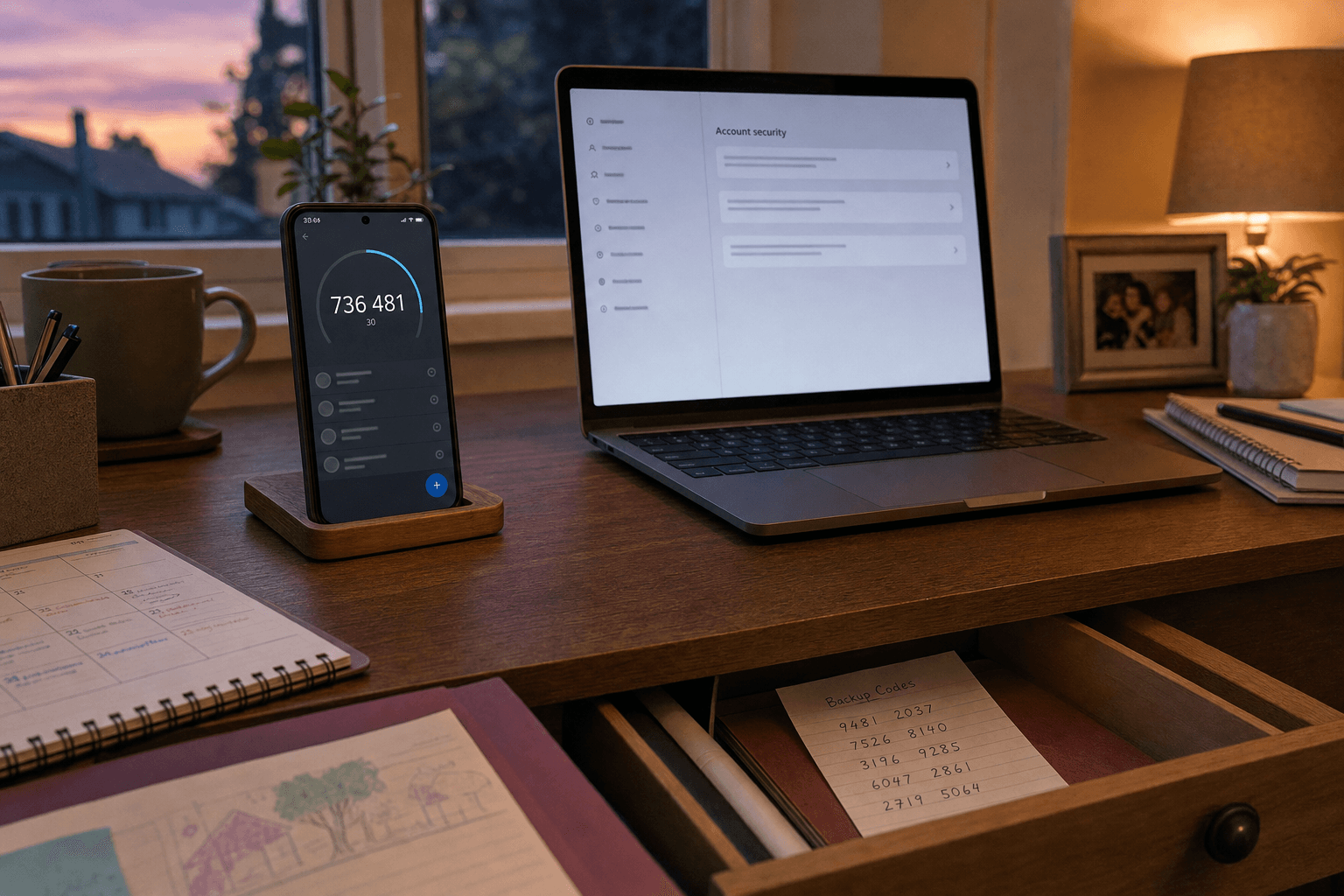
Save any backup codes the service gives you when 2SV is switched on. The NCSC notes that each code usually works once, so keep them somewhere safe. Done correctly, you can see a list of codes from the service and you know where you stored them for emergencies.
Add a backup plan if the service allows more than one second step. This matters if your phone battery dies or your usual device is missing. Done correctly, the security page shows at least one extra recovery option besides your normal everyday method.
Change the password on your email account to a strong unique password. The NCSC recommends using a sequence of three random words to make a password complex but easier to remember. Done correctly, the new password is not reused on any other family account.
Move through your other important accounts next. Cover social media, cloud storage, messaging apps such as WhatsApp, and any service that could spend money or reveal private data. Done correctly, each account either has 2SV enabled or, if 2SV is not available, a strong unique password.
Check for repeated passwords across the family’s important accounts. If the same password appears on more than one service, replace it account by account. Done correctly, a takeover of one account cannot unlock the next one with the same password.
Turn on the built-in password manager on your phone if you use iOS or Android, or use a password manager in your browser or an app. The source says both Android and iOS devices have secure and trusted password manager functions built in. Done correctly, new passwords are saved in one protected place behind a master password or biometrics.
Set devices to update automatically. The NCSC says most apps offer an auto-update option and that you should make sure this option is enabled. Done correctly, your phone, tablet, and laptop show automatic updates turned on for the operating system and installed apps.
Only download apps from official stores such as Google Play or Apple App Store. The source explains that these stores scan software for viruses before making it available. Done correctly, every new family app comes from an official store and not from a random link in a message.
Protect each device with a password or PIN that is required when the device is powered on or restarted. The NCSC also says you can use a password, PIN, or biometric such as a fingerprint or facial recognition to unlock from standby. Done correctly, the screen does not open straight into your accounts without a lock.
Turn on device-finding features. On an iPhone, make sure Find My is turned on. For Android devices, enable Find My Device. Done correctly, you can locate the device and know that remote wipe is available if it is lost or stolen.
Stop approving unexpected sign-in requests. If a 2SV prompt appears when you are not trying to log in, do not grant permission. Done correctly, you deny the request and then change that account’s password straight away.
Never share access codes, even if the message looks urgent or comes from someone you know. The NCSC is clear that sharing an access code can give attackers control of your account. Done correctly, no family member reads out or forwards a one-time code to anyone.
Be careful with messaging app setup requests. Do not share verification codes or scan unexpected QR codes, because attackers have used these to add their own devices to messaging accounts. Done correctly, only you initiate linking a new device, and you refuse any surprise request.
Reduce what attackers can learn from your social media. Review privacy settings and think about how much family detail you post publicly. Done correctly, your public profile reveals less about birthdays, routines, travel, and other clues that make targeted messages more believable.
If a suspicious email arrives, do not click links or reply. The NCSC also says to avoid entering any credentials even if the sender is genuine. Done correctly, you leave the link untouched and, where possible, report the message instead of interacting with it.
Illustrative example
Leila manages most of her family’s online accounts. Her email receives school messages, shop receipts, password resets, and travel confirmations. One evening she decides that if this mailbox falls, everything behind it is exposed.
She opens her email security settings and turns on 2SV. The service offers text messages and an authenticator app, so she chooses the app because the NCSC says authenticator apps are more secure and convenient than SMS. She scans the setup code, enters the first code from the app, and sees that the second step is now active.
Next, the service displays backup codes. Leila saves them in a safe place away from casual view. She then changes her email password to a unique sequence of three random words and stores it in the password manager on her phone.
After that, she works through the rest of her important accounts. She enables 2SV on social media and her messaging app. On an account that does not offer 2SV, she sets a strong unique password instead of reusing her email password.
She then checks her phone. Automatic updates are on, the screen lock requires a PIN, and Find My Device is enabled. She reminds her partner that no one should ever share a one-time code or approve a sign-in prompt they did not start.
A week later, Leila receives a sign-in approval request she did not expect. Because she is not logging in, she does not grant permission. She changes her email password at once. The attacker had a password, but the second step blocked the takeover before it spread to the rest of the family’s accounts.
The near-miss
Now replay the same week with one skipped check. Leila turns on 2SV, but she never talks to the family about approval requests and access codes. When a fake urgent message arrives on her partner’s phone, it says a security team needs the latest code to stop a lockout.
Her partner reads out the code because it sounds routine and time-sensitive. The attacker uses that code to complete the sign-in and reaches Leila’s email account. From there, password reset emails start landing for other services, and the attacker tries to move into social media and shopping accounts before the family notices.
The difference is not the strength of 2SV alone. The key check was knowing that codes and unexpected prompts must never be shared. Without that habit, a good control can still be talked around.
How to check it worked
Open each important account and revisit its security page. You should be able to see that 2SV is enabled, which second step is active, and whether backup codes exist. If the page still offers a button to turn 2SV on, you are not finished.
Try signing in on a new browser or device if you can do so safely. A properly configured account should ask for your second step during that login, or when you try a sensitive action such as changing the password. If the login goes straight through with only a password, check the account again.
Check your authenticator app and confirm it shows entries for the accounts you protected. Then verify that you still know where backup codes are stored. The point is not just to block attackers, but also to make sure you can still get in when your normal phone is not available.
Look at your devices too. Phones and tablets should show screen locks enabled, auto-updates switched on, and Find My or Find My Device active. Apps should come from Google Play, Apple App Store, or another official source used by your device.
Finally, test the family habit, not just the settings. Ask each person what they should do if a code arrives out of nowhere or a sign-in approval appears without warning. The right answer is simple: do not approve it, do not share it, and change the password if the request was not yours.
Test yourself
Question: Which family account should usually get 2SV first? Answer: Your main email account, because it can be used to reset passwords on many other services.
Question: What should you do if a 2SV request appears when you are not trying to sign in? Answer: Do not grant permission, then change the account password because someone may know it.
Question: Why are backup codes worth saving? Answer: They let you access an account when your usual second step, such as your phone, is not available.
Common mistakes
The most common mistake is protecting low-value accounts first and leaving email until later. That feels productive, but it leaves the main recovery route open. Start with the inbox that controls password resets.
Another mistake is reusing one strong password across several services. A strong reused password is still reused. If one service is exposed or one password is phished, the same secret may unlock the next account.
Many people stop after switching on SMS codes and think the job is done forever. SMS is far better than no 2SV, but the NCSC says authenticator apps offer advantages such as not needing a mobile signal or waiting for a text message. If an account offers an app-based option, use it.
People also forget the backup side of security. They enable 2SV, but never save backup codes and never add another recovery method. Then a lost phone becomes a lockout problem for the real owner.
Sharing passwords inside a family is risky, even when it feels practical. The source says you should not share your passwords for any of your accounts because password sharing heightens the risk of account compromise. If more than one person needs access to a service, look for a safer built-in sharing or delegated access option from that service rather than passing around the password.
Unexpected QR codes are another trap. The NCSC warns that attackers have used them to add their own devices to messaging accounts. Treat surprise linking requests the same way you treat surprise login codes: do not trust them.
Last, do not ignore your social media footprint. Oversharing family details gives attackers raw material for spear-phishing and impersonation. Less public detail means fewer clues for a convincing story.
Level up
Once your family’s important accounts use 2SV, make one upgrade: where a service offers both text messages and an authenticator app, switch to the authenticator app as your normal second step. The NCSC names Google Authenticator and Microsoft Authenticator as examples and notes practical benefits such as working without a mobile signal. Keep backup codes in reserve so you still have a recovery path if your phone is unavailable.
Checklist
- Enable 2SV on your main email account.
- Choose an authenticator app instead of SMS where possible.
- Save backup codes in a safe place.
- Replace reused passwords with unique ones.
- Turn on automatic updates for phones, tablets, and laptops.
- Enable Find My on iPhone or Find My Device on Android.
- Refuse unexpected QR code linking requests in messaging apps.
- Teach every family member never to share a sign-in code.
Frequently asked questions
Which account should I secure first against takeover?
Start with your main email account. The NCSC says access to your inbox can let criminals reset passwords on your other accounts.
Is SMS 2-step verification good enough?
It is much better than having no 2SV at all. However, the NCSC says authenticator apps such as Google Authenticator and Microsoft Authenticator are more secure and convenient than SMS.
What should I do if I get a 2SV prompt I did not expect?
Do not approve it. The NCSC says this can mean someone knows your password, so you should change that password straight away and change it on other accounts too if it was reused.
Why do backup codes matter if I already use an authenticator app?
Backup codes give you another way in if your phone is lost, flat, or unavailable. The NCSC recommends having a backup plan for your second step.
Sources
- Guidance for high-risk individuals on protecting your accounts and devices — National Cyber Security Centre
- Setting up 2-Step Verification (2SV) — National Cyber Security Centre
Stay Updated
Subscribe to our newsletter for the latest cybersecurity insights, threat intelligence, and security best practices.