

What to do in the first hour after your phone is lost or stolen
Fast, simple steps to lock down your phone before a stranger reaches your email, banking apps, and saved accounts.
Key takeaways
- Use Google Find Hub as soon as you notice the phone is missing.
- Start with the map and Play sound before choosing Factory reset.
- Mark as lost locks the phone and can show your contact details on the lock screen.
- Write down the IMEI from Find Hub settings so your mobile provider can help disable the device.
- Erase the phone only when recovery looks unlikely, because it will stop appearing in Find Hub after reset.
Why this matters to you
Your 2-minute quick win
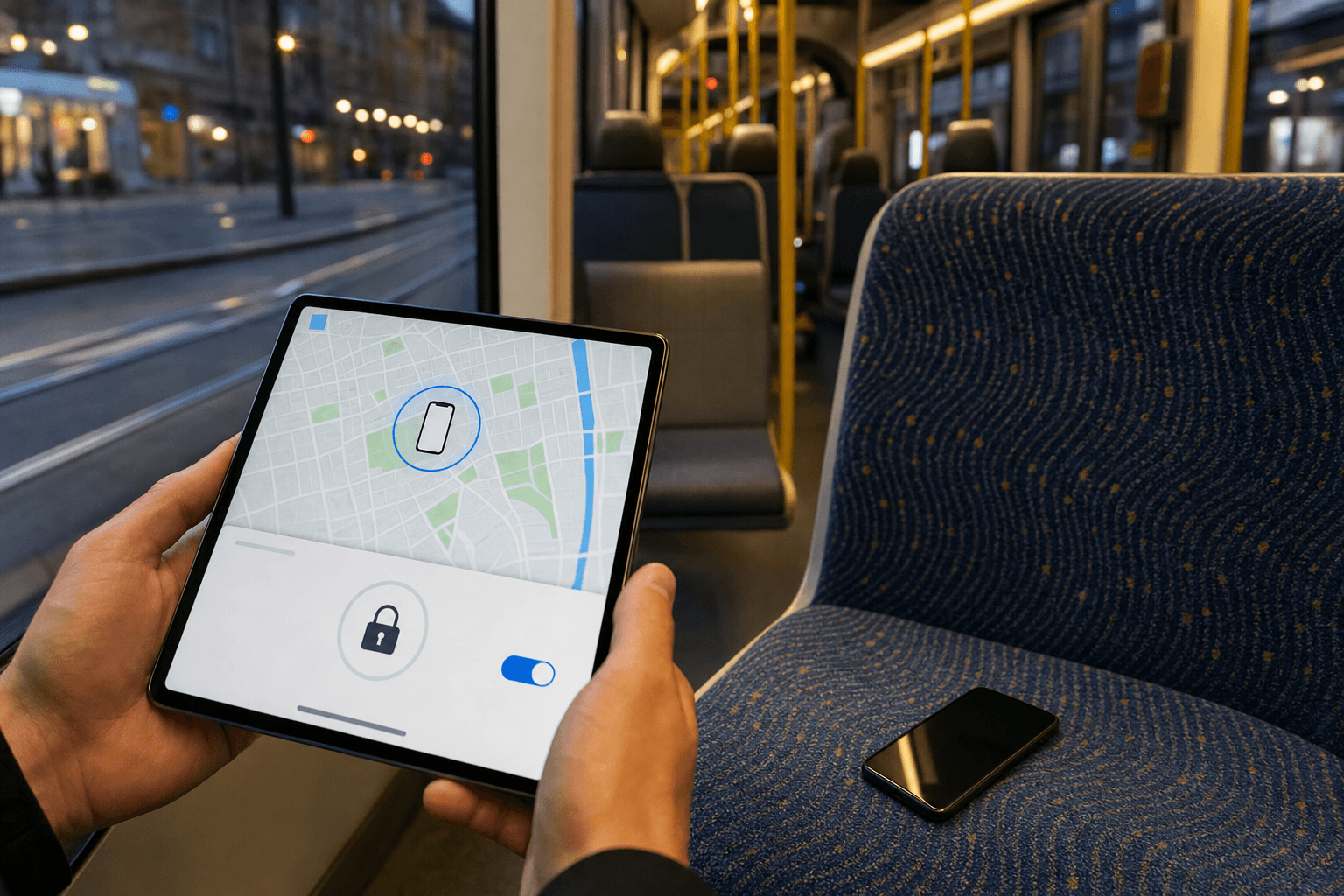
On any browser, go to Find Hub and sign in to the Google Account linked to your phone. Select the missing device and use Mark as lost. It is working when the device shows as locked and you can add a contact message for the lock screen.
A stolen phone gives someone a shortcut into your digital life. Many people think first about the cost of the handset. The bigger risk is the data already signed in on it.
Your email app may already be open. Your banking app may trust the device. Password reset links may land in the same inbox the thief can reach. That makes the first hour more important than most people expect.
Android gives you three remote actions through Find Hub. You can try to locate the phone, make it ring at full volume for 5 minutes, or lock it with Mark as lost. If recovery looks unlikely, you can use Factory reset to erase the device.
Those actions work best when the phone has power, is connected to mobile data or Wi‑Fi, is signed in to a Google Account, has Find Hub turned on, and is visible on Google Play. If those pieces are in place, you can move fast instead of guessing.
If the phone is only misplaced at home, speed still matters. A quick ring or map check can save panic and stop you from resetting a device that was just under a sofa cushion.
What you are protecting
Your first goal is to protect access, not the hardware itself. A modern phone often holds email, saved passkeys, browser sessions, messages, cloud storage access, photos, and app logins.
You are also protecting the trust other services place in that phone. Many apps stay signed in for convenience. If the phone is unlocked, a thief may not need your password right away.
Find Hub supports this in practical ways. Mark as lost locks the device with your PIN, pattern, or password. On supported devices, it also disables access to notifications, widgets, and quick access.
That matters because lock-screen previews can reveal verification codes, contact names, and useful clues. Even small details can help someone move from one account to the next.
Your location history in this moment matters too. Find Hub can show the current location on a map, or the last known location if the current one cannot be found. That helps you tell the difference between a forgotten phone and a true theft.
The source also notes that location can come from GPS, nearby Wi‑Fi, and cell towers. GPS can be accurate up to around 20 meters, while cell towers may be accurate up to a few thousand meters. That means a rough map pin is still useful, but you should read it with care.
Your phone’s IMEI also matters after theft. The source states that your mobile service provider can use the IMEI to disable the device. You can find the IMEI in the phone settings or in Find Hub settings on the web.
What it costs you if you skip this
If you wait, a thief gets time. Time to read notifications. Time to open apps that stayed signed in. Time to use your email account to reset other accounts.
If you skip Mark as lost, the phone may remain usable until the battery dies or the device goes offline. That gives away chances you still had in the first few minutes.
If you skip the map check, you may erase a phone that was still nearby. After a factory reset, the device will no longer be available in Find Hub. That ends your easiest recovery option.
If you skip saving the IMEI, you make later calls slower and less certain. When you are stressed, looking up device details becomes harder than it sounds.
If you skip checking the last known location, you may tell the wrong story to your family, workplace, or mobile provider. A phone left in a taxi is a different problem from one moving across town.
If you erase too soon, you lose the chance to make the phone ring, guide yourself to it, or show a contact message to an honest finder. If you erase too late, someone may keep trying to access what is on it. The point is not panic. It is choosing the next step with the best facts you have.
Step by step
- Open Find Hub on another device. On another Android phone or tablet, open the Find Hub app. If you only have a browser, go to Find Hub on the web and sign in. Done correctly, you will see a list of devices linked to your Google Account.
- Select the missing phone. Tap or click the device name you want to find. Done correctly, the missing device receives a notification and you see a map panel with location details or the last known location.
- Read the location before doing anything drastic. Check whether the map looks like your home, workplace, a friend’s house, or a travel route you used today. Done correctly, you can say whether the phone looks nearby, stationary, or in an unknown place.
- Use Play sound if the phone may be nearby. Choose Play sound. Done correctly, the phone rings at full volume for 5 minutes, even if it was on silent or vibrate.
- Use Find nearby when the device is close. If Find Hub shows the device within 10 meters, tap Find nearby. Done correctly, you get a shape that fills in as you get closer, which helps with room-by-room searching.
- Use Mark as lost if the phone is not in your hands. Tap Mark as lost, then continue. Done correctly, the phone is locked with your PIN, pattern, or password and you can add contact information and a message for the lock screen.
- Add a simple return message. Enter a short message and a safe contact method, such as another number you can answer. Done correctly, the message appears on the lock screen so an honest finder has a way to reach you without unlocking the device.
- Check whether recovery still looks realistic. Watch for a stable location, a home address, or a place you can visit safely. Done correctly, you have a clear reason either to keep tracking or to move to erasing the device.
- Find the IMEI in Find Hub settings. Next to the device, open Settings and locate the IMEI if the device has one. Done correctly, you have the number ready to give your mobile service provider if they ask to disable the device.
- Prepare for account protection in parallel. From a safe device, sign in to your main email and critical accounts and change passwords if you believe the stolen phone was unlocked or easy to unlock. Done correctly, new sign-ins require your updated credentials. This is general good practice, even though the exact account steps depend on the service.
- Use Factory reset only when you accept that recovery is unlikely. In Find Hub, open the device, choose Settings, then tap Factory reset. Done correctly, you have started permanent deletion of the phone’s data, knowing that SD cards may not be deleted and that the device will no longer appear in Find Hub after reset.
- Keep your Google Account password ready. If you later recover a phone after erasing it, you will need your Google Account password to use the device again. Done correctly, you can unlock your own next step instead of getting blocked by stress and memory gaps.
Illustrative example
Lea leaves a tram in Lyon and notices two minutes later that her phone is gone. She first borrows a friend’s Android phone. On it, she opens the Find Hub app and taps Continue as her own account.
She selects her missing phone from the device list. The map loads and shows a last known location close to the tram stop, not her flat. That tells her this is not a simple at-home misplacement.
Lea tries Play sound first, because the stop is still in sight and the phone may have slipped into a bag pocket. Nothing turns up. She then taps Mark as lost.
Find Hub confirms the action. Lea adds a short lock-screen message with her partner’s phone number. She keeps the message plain and safe, with no extra personal detail.
Next, she opens the device Settings in Find Hub and writes down the IMEI. She is still calm enough to do it now, which is easier than trying to remember it later.
Because the map later shifts away from the tram route, she decides not to chase the device herself. Instead, she uses another trusted device to change the password on her main email account and other key services. She keeps watching the Find Hub location for updates.
After more time passes with no realistic recovery path, she returns to Find Hub and chooses Factory reset. The data on the phone is set to be deleted. She knows that once the reset completes, the phone will no longer be available in Find Hub.
The outcome is not perfect, but it is controlled. Lea used the first hour to lock the device, leave a return message, save the IMEI, and reduce the value of the phone’s contents to anyone holding it.
The near-miss
Now replay the same situation with one skipped check. Lea panics and jumps straight to erasing the phone without first reading the map.
After the reset request, a friend spots the phone wedged between the tram seat and the wall at the depot office. Lea can collect the handset later, but it no longer helps her search through Find Hub because the device stops being available there after reset.
She still gets the phone back, but now she must set it up again and sign back in with her Google Account password. The rushed choice did not cause a disaster, yet it created extra work that a 30-second map check could have avoided.
How to check it worked
There are a few clear signs that your first-hour actions are doing their job. In Find Hub, the device should appear in your account and show either a current or last known location. If you used Mark as lost, the phone should show as locked and ready to display your contact message.
If you used Play sound, you should see that the command was sent, and the phone will ring at full volume for 5 minutes when reachable. If you used Find nearby, the guidance shape should update as you move closer.
If you saved the IMEI from device Settings, put it somewhere else you can reach later. A notes app on a second device, a password manager note, or paper all work. The important part is that you can read it under stress.
If you chose Factory reset, remember what success means here. Success is not getting the phone back on the map. Success is removing your data from the device, knowing that SD cards may not be deleted and that the phone will no longer stay visible in Find Hub after reset.
Test yourself
Question: What should you usually do before choosing Factory reset? Answer: Check the current or last known location in Find Hub so you do not erase a phone that is still recoverable.
Question: What does Play sound do? Answer: It rings the device at full volume for 5 minutes, even if it was set to silent or vibrate.
Question: Why write down the IMEI? Answer: Your mobile service provider can use the IMEI to help disable the device after theft.
Common mistakes
Going straight to panic mode. Many people either do nothing for too long or erase too early. Start with the map, then choose the least destructive action that still protects you.
Assuming silent mode means you cannot test for a nearby phone. Find Hub can still ring it at full volume for 5 minutes. That makes Play sound a very useful first check.
Ignoring last known location because it is not perfect. Even when the current location is unavailable, the last known point can tell you whether the phone was likely lost at home, on a commute, or somewhere unfamiliar.
Forgetting that remote actions need the basics in place. Find Hub works best when the phone has power, is connected to mobile data or Wi‑Fi, is signed in to a Google Account, has Find Hub turned on, and is visible on Google Play.
Not realising what Mark as lost changes. It does more than place a note on the screen. It locks the phone with your PIN, pattern, or password, and on supported devices it disables access to notifications, widgets, and quick access.
Thinking a factory reset is fully reversible inside Find Hub. Once the device is reset, it will no longer be available in Find Hub. Treat that choice as the point where you stop trying to locate the phone through Google’s tool.
Level up
The best next step is to prepare before the next loss. On Android, Find Hub is automatically turned on when you add a Google Account, but the source notes that to get help from the Find Hub network with finding your items on your Android device, you should set a PIN, pattern, or password. Do that now if you have not already.
Also check whether your phone can show the IMEI on the lock screen. On Android 12 and up, go to Settings, then Security & Privacy, then Lost Device Protection, then Theft Protection. There you can toggle whether to display or hide your IMEI on the lock screen.
Checklist
- Open Find Hub on another device or in a browser.
- Select the missing phone and read the current or last known location.
- Use Play sound if the phone may be nearby.
- Use Mark as lost and add a safe contact message.
- Open device Settings in Find Hub and note the IMEI.
- Change key account passwords from a safe device if theft is likely.
- Use Factory reset only when you accept that recovery is unlikely.
Frequently asked questions
Can I make my Android phone ring if it was on silent?
Yes. In Find Hub, Play sound rings the device at full volume for 5 minutes, even if it was set to silent or vibrate.
Should I erase my phone as soon as it is missing?
Not always. Check the current or last known location first, because a quick map check may show that the phone is still nearby and recoverable. After Factory reset, the device will no longer be available in Find Hub.
What does Mark as lost do on Android?
It locks the device with your PIN, pattern, or password. You can also add contact information and a message for the lock screen. On supported devices, it also disables access to notifications, widgets, and quick access.
Why does the IMEI matter after theft?
The source states that your mobile service provider can use the IMEI number to disable the device. You can find it in Find Hub settings or in the phone settings if the device has one.
Sources
- Find, secure, or erase a lost Android device (Google Android Help)
Stay Updated
Subscribe to our newsletter for the latest cybersecurity insights, threat intelligence, and security best practices.